
Today, being able to monitor multiple people, screens, or devices is no longer just a tech enthusiast’s skill, it is a modern necessity. Whether you’re balancing work on two computers, keeping an eye on energetic toddlers with a baby monitor with camera, or securing your home, knowing how to manage different feeds and inputs can simplify your life. This easy-to-follow article explores the practical ways anyone can master multi-device monitoring, using tools you may already have or can get with little effort. Let us dive into everything from dual-screen setups to the most reliable ways to give yourself eyes and ears everywhere you need them.
What Does “Monitor Multiple” Mean Across Different Contexts?
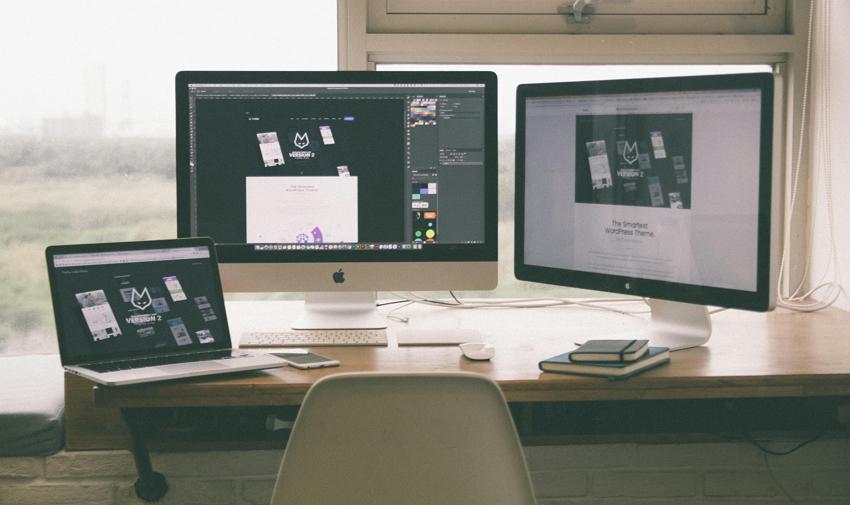
Monitoring multiple things means keeping track of more than one device, screen, or person at the same time. This can apply to different areas of life:
- At Work: Watching several screens to handle projects or data.
- At Home: Keeping an eye on your kids in different rooms with baby monitors.
- For Security: Viewing several security cameras for safety.
- For Fun: Gamers and streamers use many screens to follow games, chats, and streams.
This concept is about centralizing control and observation. Instead of being scatterbrained or running between rooms, you have a single hub or system that brings all feeds together. Whether you are a parent, a manager, or someone who just enjoys technology, learning how to monitor multiple devices can make your life easier.
Monitoring Multiple Computer Screens: Setups and Benefits
If you’ve ever wished you had more eyes to catch every task, monitoring multiple computer screens is your answer. Here’s how and why it can help:
Setups
- Dual or Triple Monitors: You connect two or three monitors to a single computer. This expands your workspace and allows you to see more applications at once.
- Monitor Arms or Stands: These keep your screens organized and at eye level.
- Split-Screen Software: Programs like DisplayFusion or native OS features let you divide one screen for running multiple apps.
- Docking Stations: Connect laptops to many displays with one plug.
Benefits
- Increased Productivity: With more space, you can compare data, write reports, and video call, all without minimizing anything.
- Less Distraction: Each screen serves a purpose, so you keep your focus and do not lose your train of thought.
- Easy Management: Move files or monitor workflows much quickly.
During busy days, these setups prevent you from toggling between windows and losing your focus. It saves time and can even reduce stress at work or home.
Using Baby Monitors for Multiple Children or Rooms
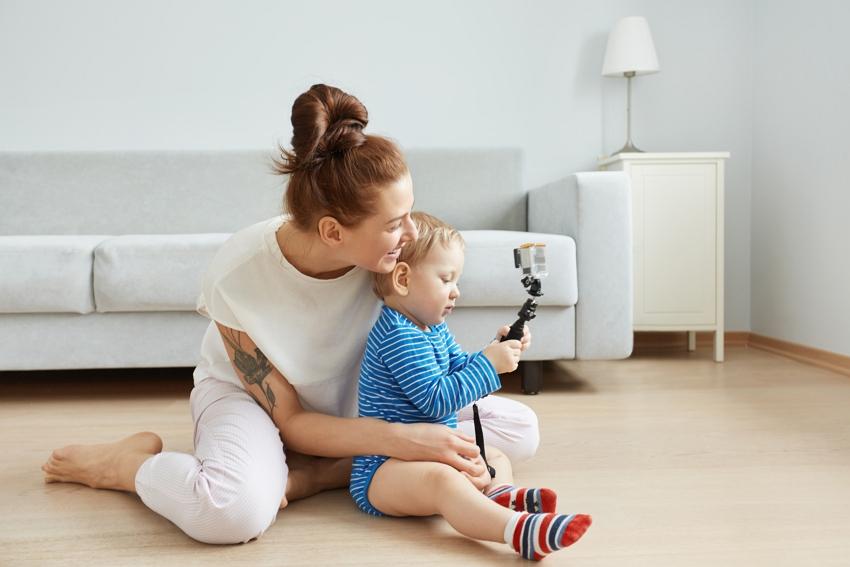
For parents and caregivers, peace of mind comes from eyes everywhere. Monitoring multiple children or rooms is easy with the right baby monitors.
Multi-Room Monitoring Solutions
- Multi-Camera Monitors: Some baby monitors allow you to connect several cameras to a single parent unit or app. This is perfect if you have more than one child or want to watch different rooms.
- Audio and Video Feeds: See and hear what is happening in every room, all from one screen.
- Split-Screen and Auto-Scan: Many modern monitors offer split-screen options or automatically scan between rooms every few seconds.
- Portable Parent Units: Clip these onto your belt, pocket, or even carry them from room to room.
You can easily check on your toddler in one room and your baby in another. Or, if your children have different sleep schedules, you can monitor both without moving from your chair.
Remember that baby monitors are not just for babies, they can help you keep an eye on older kids, pets, or even elderly family members.
In the middle of the content, here is an ideal recommendation for parents:
For families wanting reliable coverage and convenience, check out the baby monitor with camera. This solution offers modern features like multiple camera support, split-screen viewing, and clear night vision, making it simple to monitor multiple spaces and loved ones at once.
Home Security: Viewing Multiple Cameras From One Hub
Home security is more effective when you can monitor multiple cameras together. Here is how to make that possible:
Centralized Viewing
- Security Camera Kits: These often come with two or more cameras and a central hub or screen.
- WiFi and Wired Systems: WiFi-based cams allow flexible placement, while wired systems offer stability and reliability.
- Apps and Cloud Services: Most security brands offer mobile or desktop apps that group all your live camera feeds in one place, so you can check from your phone or tablet.
Features to Look For
- Motion Detection: Get alerts if something moves in the camera view.
- Mobile Access: Check your cameras anytime and anywhere.
- Playback and Storage: Review recorded footage in case you missed something live.
With the right setup, you can sit anywhere in your house and see your front door, backyard, and garage all at once. It is both a practical and safe way to keep your home secure.
Best Apps and Systems for Monitoring Several Devices at Once
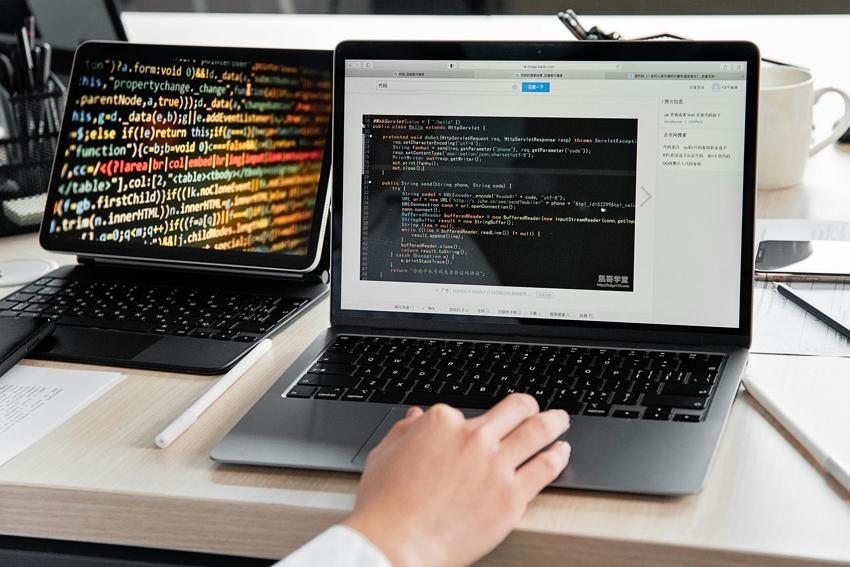
Technology makes it easier than ever to watch over many things at the same time. Here are smart apps and systems for how to monitor multiple devices:
For Screens and Computers
- Synergy or Barrier: Control different computers with one keyboard and mouse.
- Input Director: Switch between Windows machines instantly.
- Display Managers: Adjust screen layouts, brightness, and resolution with one click.
For Phones and Tablets
- Family and Parental Control Apps: Monitor your kids’ online activity, app usage, and location.
- Home Automation Systems: Control lights, smart locks, and cameras all from a single app like Google Home or Apple Home.
For Security Cameras
- Security Brand Apps: Many security camera makers offer apps that manage all your feeds at once, just log in and see everything live.
- Third-Party Integrators: Apps like TinyCam or Blue Iris let you add and control many kinds of cameras within one interface.
Always look for systems that are user-friendly and offer good support. Test their alert and notification features before relying on them completely.
Organizing Your Screen Space for Work or Gaming
Having multiple screens is only helpful if you keep things tidy. Good organization boosts efficiency and comfort.
Tips for Smart Screen Management
- Label Your Screens: Use sticky notes or on-screen labels.
- Dedicated Functions: Assign a specific use to each screen, one for work, one for emails, one for music or chat.
- Use Virtual Desktops: Switch between workspaces without crowding your main desktop.
- Cable Management: Keep wires neat to avoid a cluttered desk.
For Gamers
- Monitor Placement: Position screens so your main game stays front and center, with chats or maps on side monitors.
- Performance Monitoring: Use tools like MSI Afterburner to keep an eye on your game’s stats.
A clean workspace creates a clear mind and ensures all your efforts pay off in productivity or play.
Audio, Motion, and Alert Settings for Multi-Monitor Systems
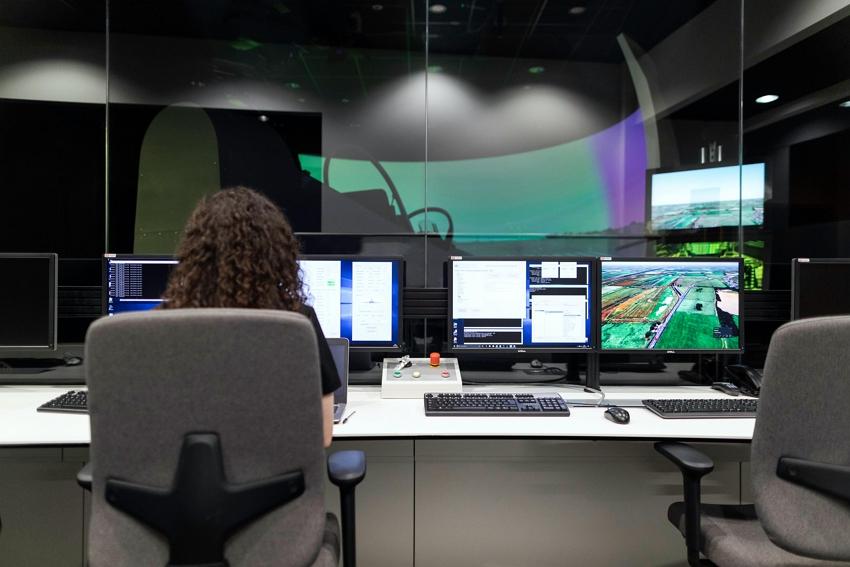
Getting alerts from different sources can overwhelm you unless set smartly. Here are some ways to keep your system efficient and stress-free:
Setting Up Smart Alerts
- Custom Notifications: Set unique sounds for each device or room.
- Motion Zones: Only get alerts from important areas, like doorways or kids’ cribs.
- Volume Control: Keep the sound at a comfortable level so you don’t miss anything but still maintain peace.
- Silent Periods: Schedule times when notifications are off, like during family time or sleep.
Visual and Audio Blend
- LED Indicators: Some systems use glowing lights as alerts.
- Vibration Feedback: Wearable monitors can buzz to get your attention quietly.
Configuring alerts properly means you react to the signals that matter, not every small noise or movement.
Network and Power Considerations When Running Multiple Monitors
A smooth, reliable setup for monitoring multiple devices depends on your network and power arrangements.
For Computers and Cameras
- Use Wired Connections: Ethernet cables deliver more stable and faster speeds for high-quality video feeds.
- WiFi Optimization: Place your router close by, or use WiFi range extenders.
- Surge Protectors: Protect your equipment from power spikes.
For Baby Monitors and Mobile Devices
- Battery Checks: Many monitors will alert you if the battery runs low. Always have spares ready.
- Charging Stations: Set up a central spot to charge all devices overnight.
By preparing your network and power, you guarantee continuous monitoring and avoid awkward interruptions.
Conclusion
Learning how to monitor multiple devices, screens, and people is key in today’s world, whether at home or work. Thankfully, there are accessible tools and setups for everyone. From a streamlined work desk to a dynamic home security hub or a baby monitor with camera for family peace of mind, mastering multitasking has never been easier or more approachable. Use the tips and strategies shared to organize, secure, and simplify your life. With the right steps, you’ll never feel overwhelmed by the need to be in two places at once, because you’ll already have eyes and ears wherever you need them.